Text Photo AI

Ideogram 4.5 AI Image Generator & Editor

Ideogram 4.5 is the text-first image model on Text Photo AI. It generates images — and edits an image you upload — from plain-language instructions, and it is the model to reach for when the image has to contain words that are spelled correctly.

Readable text in imagesInstruction-based editingCompared with Nano Banana below

Try Ideogram 4.5

Begin with the wording and layout you need. Add a source image when your brief calls for an edit; the first upload is the source and subsequent uploads are references.

0 / 2,000
…

One image per request. Upload a source to switch to precise editing.

Credit cost: —

Content and copyright rules

Do not submit NSFW, harmful, explicit, sexually suggestive, or rights-infringing prompts.

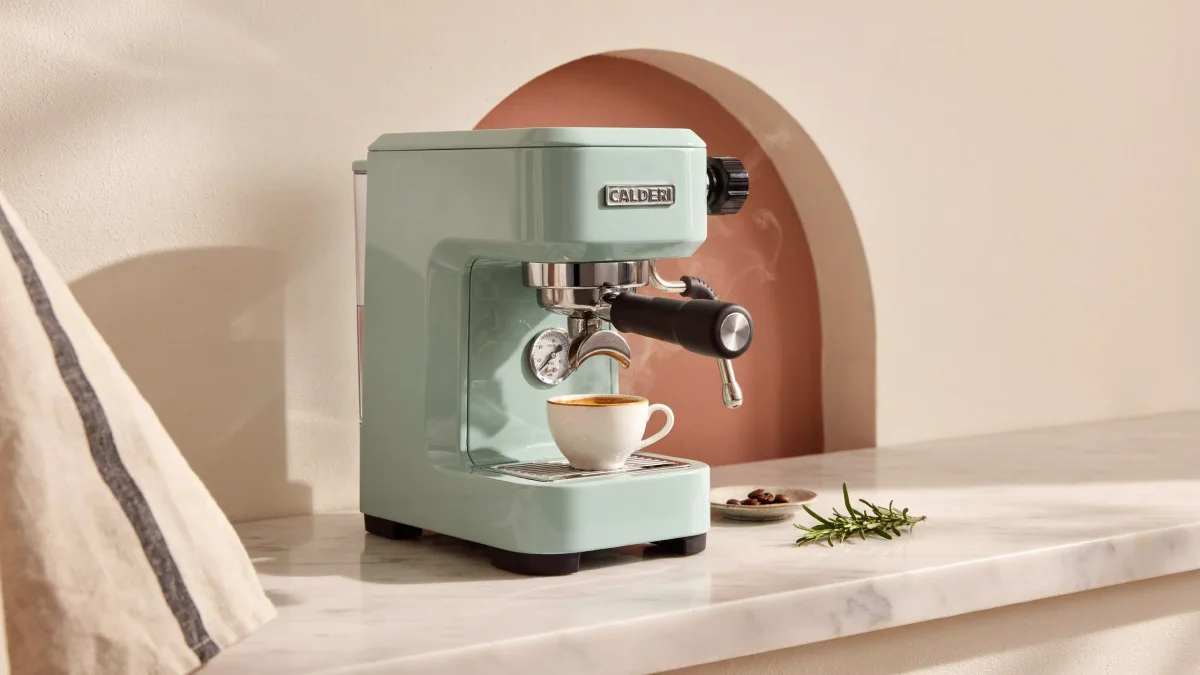
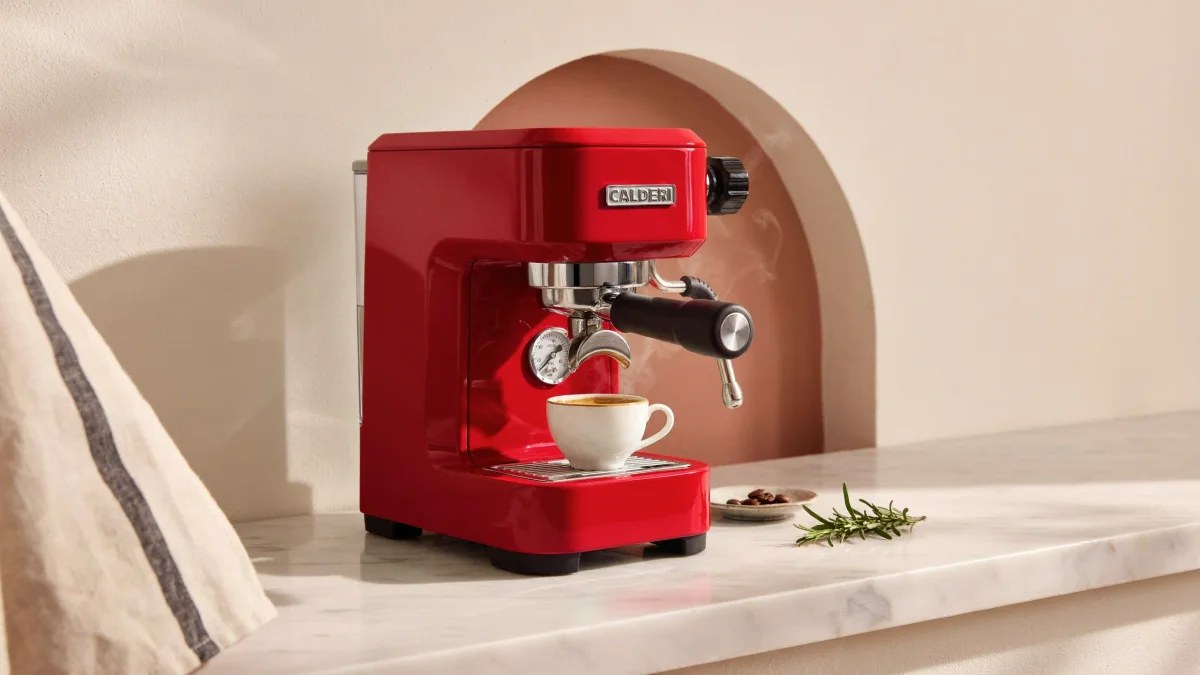
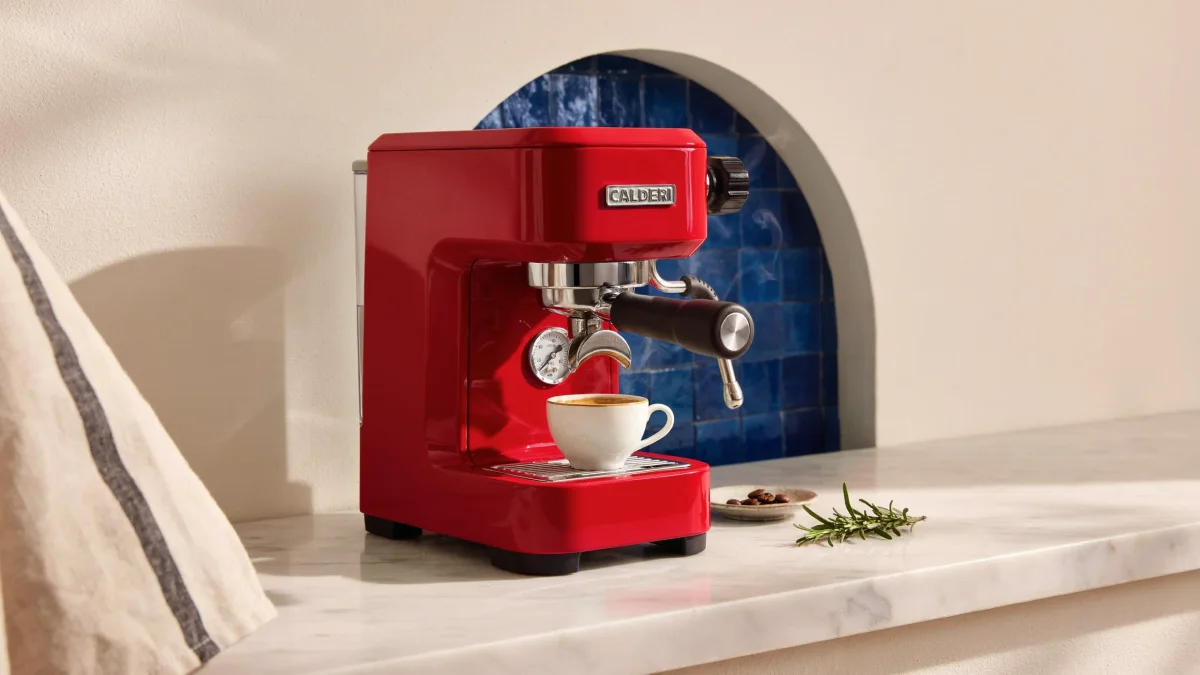
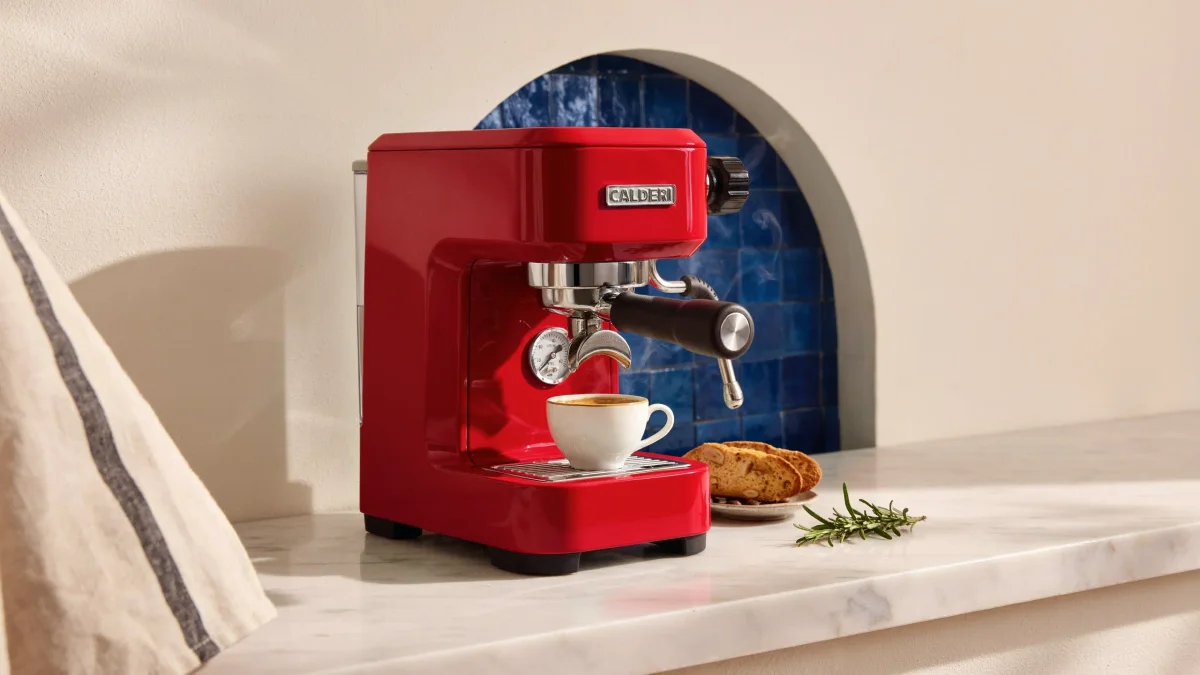
One image. Three deliberate edits.

Compare a color change, a tiled background and an added prop with each previous step, or try the edits yourself.

Mint-green espresso machine in a terracotta niche
Original

What you can do with text in a photo

Text Photo AI helps you add text, replace existing text, or revise text while asking to keep the original font style. Describe the placement and details to preserve, then review spelling and layout. Multiple image models are available.

01

Design with words

Add a headline to a poster, a caption to a photo, or wording to a label. Quote the exact text and specify placement.

02

Refine product visuals

Replace existing text on a package or sign. Identify the old text, supply the new text, and describe what should stay unchanged.

03

Iterate with intent

Ask to preserve the original font style, size and spacing when changing text. Compare the result closely; AI may alter letterforms.

More models on the same canvas

Choose from 9 models, including Ideogram 4.5, Seedream, and Nano Banana. Each has its own parameters and credit rates. Mark-guided editing, transparency, and layers use Seedream 5.0 Pro.

How to edit text in an image

  1. 1

    Upload your image

    Upload a JPEG or PNG containing the words you want to edit, or describe a new image.

  2. 2

    Enter the new text

    Quote the exact replacement text. Describe the font style and placement to keep, choose quality, and check the credit estimate.

  3. 3

    Generate and check spelling

    Sign in and submit. Review every text change, along with colors, composition and unchanged details.

  4. 4

    Export or keep editing

    Download the finished image or make another focused edit. Find previous results in creation history.

Give each edit a clear text brief

Specify changes and details to keep. This prompt example is not a measured multi-turn result or pixel-preservation guarantee.

“Replace the background with a warm gray studio backdrop. Keep the bottle shape, label wording, and camera angle unchanged.”

A good image starts with a clear text prompt

These prompts demonstrate precise control of wording in an image. Try these writing examples; they are not generated outputs.

01 · An event poster

An event poster

A modern jazz festival poster on warm cream paper with dark brown typography. Exact headline: "AFTER HOURS". Smaller text: "FRIDAY 8 PM". Wide margins, confident hierarchy, no other text.

02 · A product label

A product label

A frosted amber candle jar with a cream label reading exactly "SLOW SUNDAY". Soft window light, warm stone background, understated product photography and a clearly readable label.

03 · A storefront sign

A storefront sign

A minimal neighborhood coffee shop with a forest-green sign reading exactly "DAILY BREW" in large cream letters. Early morning light, straight-on view, readable lettering.

Text rendering: how to get the words right

Quote the exact wording

Put the literal text in quotation marks and explicitly exclude extra words. Short, settled copy is easier to check than a paragraph the model is also asked to write.

Design a workshop poster with a plain ivory background. Place exactly "PRINT CLUB" in bold black type. Use no other words.

Specify where each line goes

Give every line its own position and size relationship. Separate the headline from dates or secondary labels so the model has an explicit reading order.

Place exactly "NIGHT MARKET" at the top centre. Set exactly "FRIDAY 6 PM" on a separate line at the bottom right. Leave a clear gap between the two lines.

When you edit, say which words must stay unchanged

Identify the replacement and the protected wording separately. Include typography and placement among the protected details when only the message should change.

Replace only "CLOSED" with "COME IN" on the uploaded shop sign. Keep "OAK STREET" unchanged, including its spelling, letter style and position. Preserve the photograph around the sign.

Use cases

Posters, menus and event graphics

Work from approved titles, item names and dates. Plan the hierarchy before generating, then check every price and time; for long menus, compose smaller sections rather than crowding all the copy into one image.

Product labels and packaging

Supply a product photograph for edits and define the label area, wording and material. Examine curved surfaces and small print closely before treating a mockup as a finished packaging design.

Logos and wordmarks

For an ideogram logo generator workflow, begin with a short brand name, a letter style and a simple arrangement. Decorative letterforms can compete with spelling and readability: compare a restrained wordmark with a more expressive version. A generated image is a design concept; check the letter shapes and recreate the selected mark as a vector for production.

Editing an existing photo

Describe one visible change, such as replacing sign text or recolouring a wall, and protect the rest of the photograph in the same instruction. Compare edges, shadows and the subject with the source before starting another round.

Ideogram 4.5 vs Nano Banana 2.1 vs Nano Banana Pro

CapabilityIdeogram 4.5Nano Banana 2.1Nano Banana Pro
Default on this pageYesNoNo
Reference image limit1 source + 4 references1414
Available output sizes1024 × 1024 · 1280 × 896 · 896 × 1280 · 1344 × 768 · 768 × 1344 · 1536 × 640 · 640 × 1536. Edits retain the source dimensions.1K · 2K · 4K; 1:1 · 4:3 · 3:4 · 16:9 · 9:16 · 3:2 · 2:3 · 21:9 · 4:5 · 5:4 · 1:4 · 4:1 · 1:8 · 8:11K · 2K · 4K; 1:1 · 4:3 · 3:4 · 16:9 · 9:16 · 3:2 · 2:3 · 21:9 · 4:5 · 5:4
Credits per imageGeneration — Low: 3 · Medium: 6 · High: 10; Editing — Low: 3 · Medium: 6 · High: 221K: 12 · 2K: 18 · 4K: 361K: 10 · 2K: 10 · 4K: 12
Text rendering———
Split layers———

Choose Ideogram 4.5 for a brief centred on exact wording or a specific written edit. Nano Banana 2.1 accepts more references, offers extreme aspect ratios and includes 4K output; Pro also offers more references and 4K, with the ratios listed above. These are workflow choices: inspect actual results before settling on a model.

AI image generation pricing

Ideogram 4.5 FAQ

What is Ideogram 4.5?

Ideogram 4.5 is the image model selected by default in this Text Photo AI workbench. It turns written instructions into new pictures and uses a source-image editing workflow when you upload a picture. This page focuses on readable wording, typography and controlled edits.

How is Ideogram 4.5 different from Nano Banana?

On Text Photo AI, Ideogram 4.5 provides explicit pixel sizes and quality levels for text-led generation and instruction-based edits. Nano Banana 2.1 and Pro provide resolution and aspect-ratio controls, more reference slots and 4K output. The table shows the current site configuration and credit rates.

Can Ideogram 4.5 render text correctly?

It can render readable words inside an image, but individual letters, punctuation or line breaks can still be wrong. Quote the exact copy, specify each line’s position and proofread the result. If a line fails, edit that line while explicitly protecting the remaining wording.

Can I edit an existing image with Ideogram 4.5?

Yes. Upload a source image and describe the intended change. Text Photo AI uses the precise-edit endpoint for this workflow and keeps the source dimensions. Additional references can guide the edit; name what should change and what should remain intact.

How do I keep the same character across several images?

For an original fictional character only, start each edit from a clear source image and reuse the same supporting references. The character must not depict or identify a real person. List design details to preserve, then describe the new setting or pose separately. Carry an approved result into the next round and compare facial features each time; consistency is not guaranteed.

Is Ideogram 4.5 free on Text Photo AI?

Generating and editing consume Text Photo AI credits. You can try the model with any available trial credits in your account; ongoing access depends on your balance. Quality changes the cost, and High-quality editing has its own rate. Check the estimate in the generator and the current pricing page.

When should I pick Nano Banana instead?

Pick Nano Banana 2.1 when you need more reference images, extreme aspect ratios or 4K output. Pro also provides more references and 4K, but has a narrower ratio selection. Use Ideogram 4.5 when correctly spelled words inside the image or a written editing instruction is central to the brief.

Is Text Photo AI the official Ideogram product?

No. Text Photo AI is an independent third-party tool that offers several image models. It calls Ideogram through the official model endpoints on Replicate. Text Photo AI has no affiliation with Ideogram; account credits and the interface described here belong to Text Photo AI.

AI image generation pricing

Put your wording into a picture

Bring one short brief to the workbench and check the first result before refining it.

Open this page’s generator