Edit text in an image
Edit existing text in an image online. Upload a source, describe your replacement, and review AI changes to lettering and layout.
Last updated: 2026-11-17
Correct a coffee caption without redesigning the photo
Actual AI correction: Fresh coffe becomes Fresh coffee. Check the surrounding photo as well as spelling.
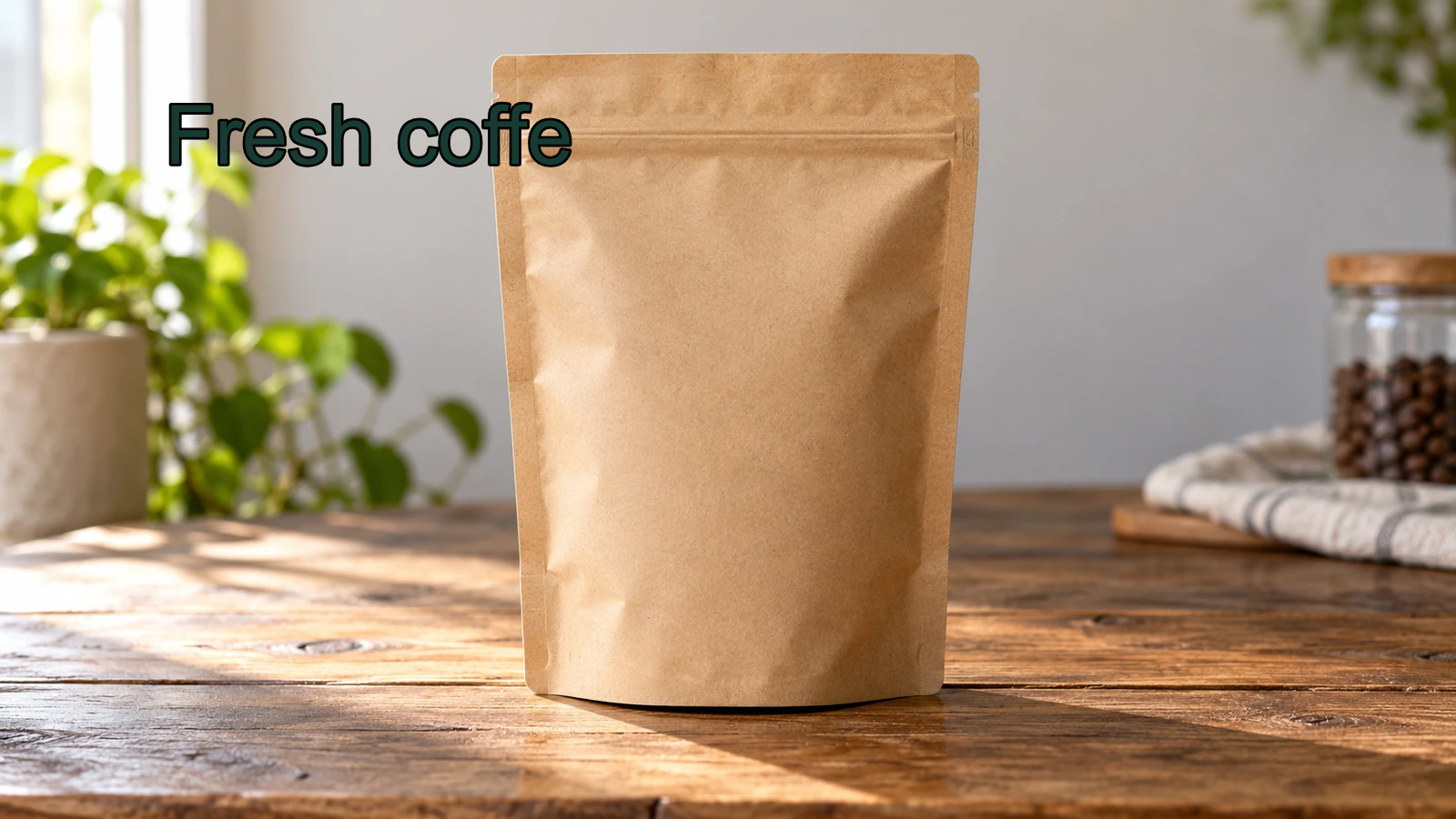
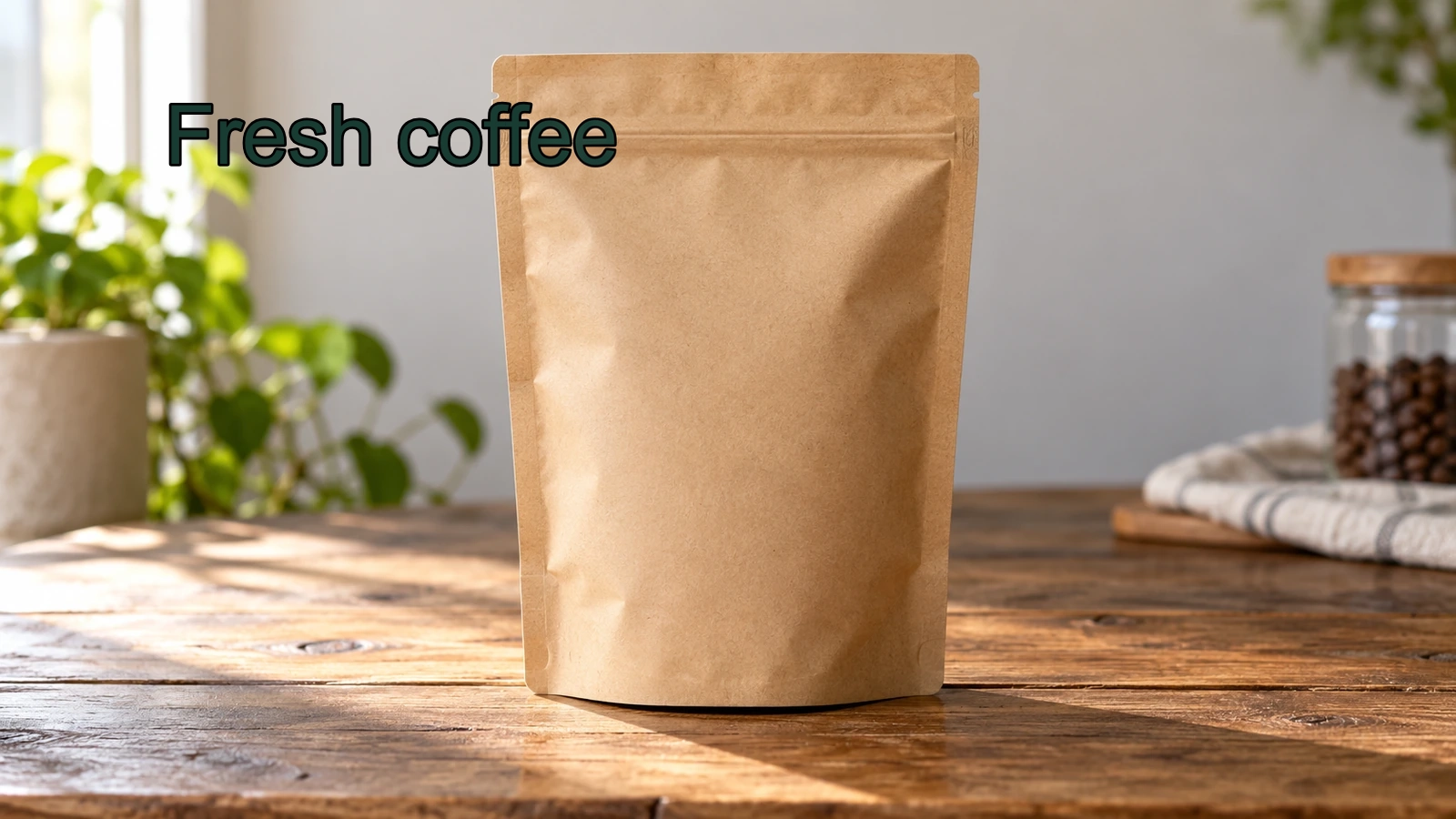
Loading an example is free. AI editing requires sign-in and credits; no generation starts automatically.
Use the editor above to correct existing wording. Upload an image, enter Text on the image and Change it to, then review the cost and submit. The example below loads both fields; it does not automatically generate.
Use the editor above to correct a typo, update a label, or replace a short phrase in an existing image. Upload your source, prepare instructions, and review the prompt before generating. AI edits can change surrounding details; visual matching is approximate.
For interface labels and layout checks, use edit text in a screenshot. For lettering, spacing, and perspective checks, use edit text with the same font appearance. For a new message or translation, see change or replace text.
A misspelled word can spoil an otherwise finished image. Editing the text lets you request a small correction without rebuilding the whole design from scratch. Start with a readable original, identify the exact error, and judge the result against the surrounding letters rather than assuming the first output is ready to publish.
When to use it
A typo on a printed menu
A restaurant photograph may show “GRILDED SALMON” when the intended dish is “GRILLED SALMON.” This is a useful correction task because the replacement is almost the same length. Ask to preserve the price, other dishes, paper texture, and perspective. Check every menu line afterward: a model may redraw nearby characters even when you requested a single word.
A mistaken date on an event poster
An exported poster might say “SATUDAY” or contain the wrong day number. A targeted edit can correct that small area while keeping the event identity recognizable. Verify the date independently before submitting; the editor cannot determine which date your event actually uses.
An error in a photographed notice
A notice on a wall can contain a spelling mistake that is hard to replace with a flat text overlay because the paper is tilted or unevenly lit. Describe the notice and its location in the frame. Ask for matching perspective and ink appearance, then examine the paper edges and shadows as well as the corrected word.
How to do it step by step
- Choose a legible source. Upload a JPEG or PNG with enough detail to distinguish the original letters. Use the best available export or photograph, not a tiny messaging preview. Heavy compression and glare make accurate matching harder.
- Name the exact correction. Put both the old phrase and its replacement in quotation marks. If the same phrase appears twice, identify the target by position, such as the third dish line or the upper-right notice. Keep the first request limited to that correction.
- Describe what must stay. Mention the lettering style, size, baseline, spacing, and surrounding content. On a photographed surface, also name perspective, texture, and lighting. These are instructions to the model, not a promise of pixel-identical preservation.
- Review and submit. Review the displayed credit estimate and submit; this editor uses its preset model and quality.
- Compare and export. Read the corrected phrase character by character, including punctuation. Inspect adjacent text and the full composition at normal size and close up. If the correction creates another error, return to the original and narrow the instruction before spending more credits.
Prompt examples
Change "GRILDED SALMON" to "GRILLED SALMON". Keep the same lettering style, size, placement and every other word on the menu exactly as it is.
This isolates one misspelled dish and gives a clear preservation requirement for neighboring lines.
On the event poster, correct "SATUDAY" to "SATURDAY" in the date line beneath the headline. Preserve the date number, venue, typography, paper color and illustration.
The location helps distinguish the date line from a repeated phrase elsewhere in the artwork.
In the small notice on the right-hand window, replace "ENTRACE" with "ENTRANCE". Match the existing black lettering and perspective. Leave the window reflections and every other word unchanged.
This example identifies the physical surface instead of asking for a general redesign of the storefront.
Common problems
The correction is spelled wrong again
Check that your own prompt contains the correct spelling and uses quotation marks consistently. Try one word at a time instead of rewriting an entire paragraph. If the source is too blurred to read, obtain a sharper version. Repeatedly editing a damaged output can make both the text and background less reliable.
The font looks close but not identical
AI can alter letterforms, stroke contrast, or spacing while attempting to match a font. Ask for the same serif or sans-serif structure and compare distinctive letters. If exact brand typography is mandatory, use the original design file and licensed font in a layout application instead of treating an AI approximation as a verified match.
Nearby details change
Compare prices, logos, borders, and shadows, not just the requested word. Return to the clean source and specify the target more precisely if unrelated content shifts. Do not publish an attractive correction that quietly changes another menu price or important event detail.
FAQ
Can I edit text without the original font file?
You can request a visual match from a flattened image, but matching is approximate. The model does not turn the photograph into an editable typography document or guarantee the same font family.
Should I fix several mistakes in one request?
For a short, clear line, a combined correction may work. For scattered mistakes, separate edits make it easier to identify what changed. Review each output before using it as the next input, and retain the untouched original.
Does this also add or remove text?
This entry edits existing wording, from small corrections to short replacements. To place a new caption on an empty area, use the add text guide. To reconstruct the background behind unwanted lettering, use the remove text guide.
Ready to correct a specific mistake? Open the image editor, upload your source, and begin with one short, clearly identified correction.