Write text on an image for free
Write captions on photos online. Add editable text, choose a font and color, position each text box, and download a free PNG.
Last updated: 2026-11-17
Write a caption over a product photo
Freshly roasted was exported with this free browser editor. The source photo was created with AI; the caption is a separate editable text layer when loaded here.
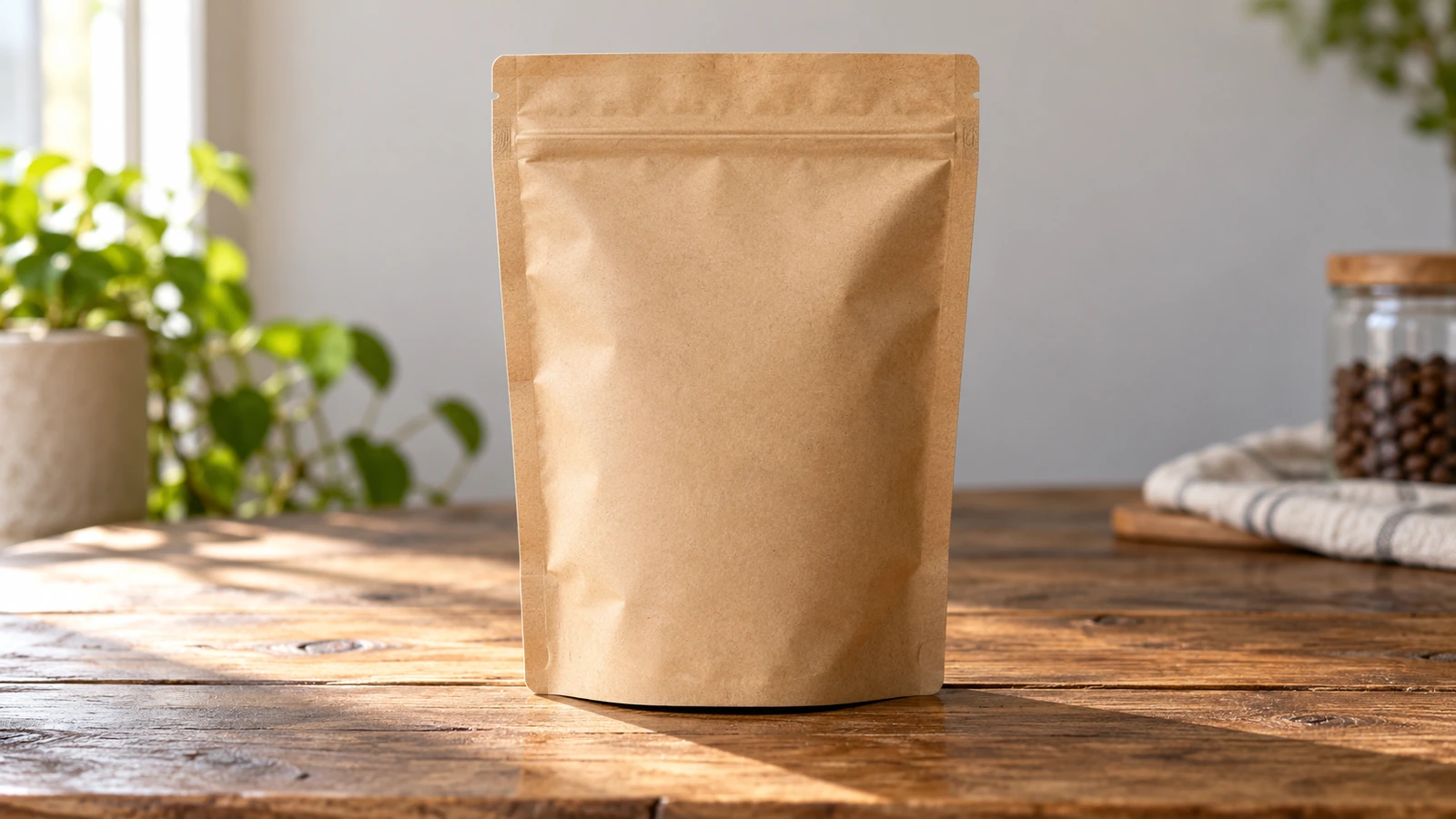
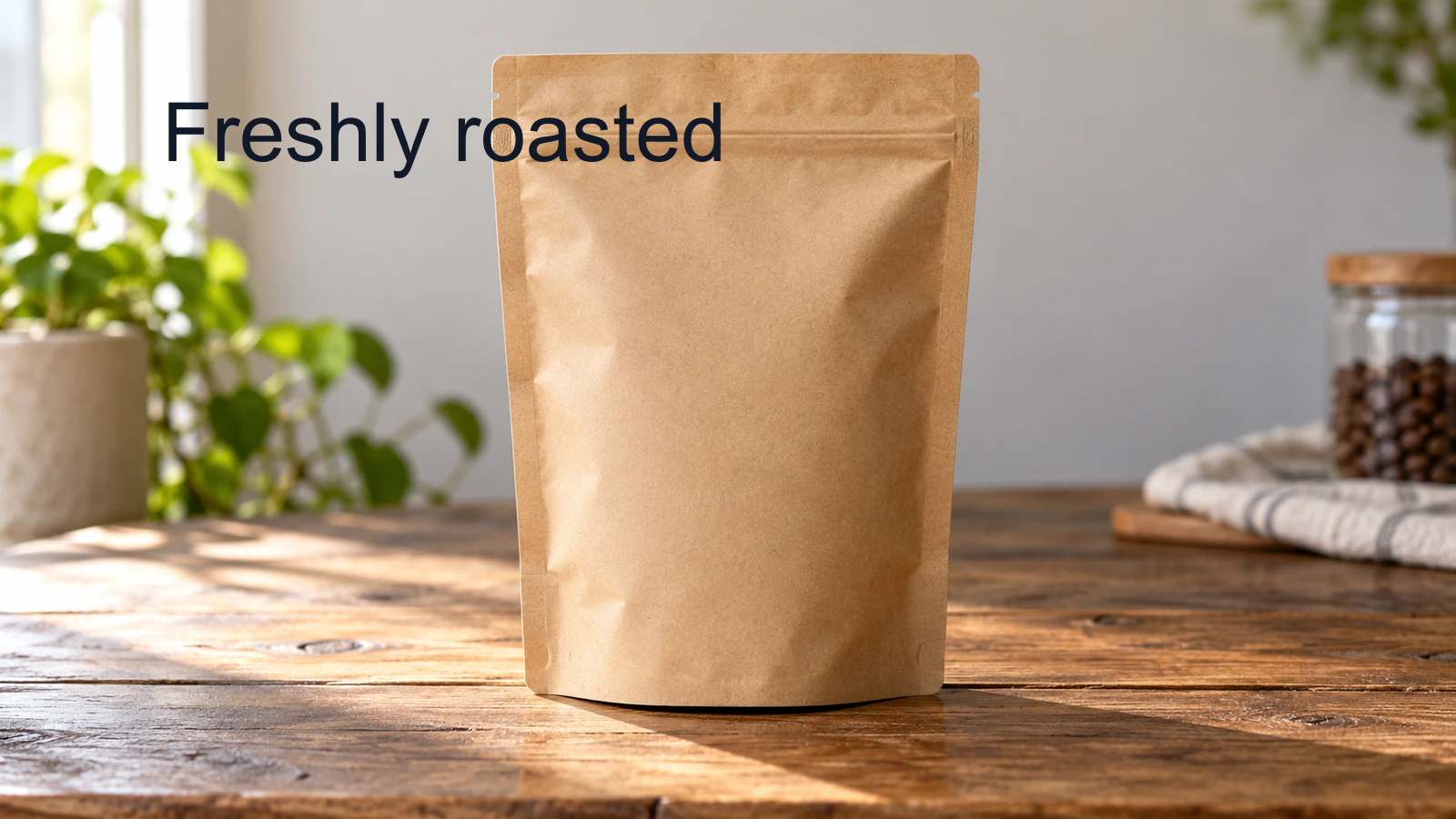
Free browser editing and PNG export.
Write a caption directly on your photo with the editor above. It starts in Add text · Free mode. Your image stays in the browser for this workflow, and PNG export needs no account or credits.
How to write on a photo
- Upload a JPG or PNG, or load the example below the editor.
- Type your caption. Choose a font, size and color with enough contrast against the photo.
- Drag the text into place. Add another text box for a title and a separate supporting line; keep important details visible.
- Review the full image, then download a PNG. Export flattens the text into pixels; keep the original photo to make another version later.
Choose a layout for your message
A product caption: place a short line in open space beside the product, rather than covering the label.
An invitation: use separate text boxes for the event name and practical details. Check names, dates and addresses before exporting.
A photo quote: keep the wording concise, use sufficient contrast, and only use text you have permission to publish.
Adding text versus replacing text
This free tool adds new text. It does not erase or rewrite words already inside a photo. Use change text in an image to replace existing wording with AI, or remove text to clear it first. AI edits require sign-in and credits.
Frequently asked questions
Can I write more than one line?
Yes. Enter line breaks or add separate text boxes to give each line its own size and placement.
Does the tool preserve the original image dimensions?
The PNG export uses the source image dimensions. Check for text overflow before downloading, especially with long captions.
Can I match an existing font exactly?
You can choose from the fonts available in the editor. It does not identify an original font file. For AI replacement, see same-font editing.
Is the downloaded text still editable?
No. The downloaded PNG is a flattened image. Keep your source photo; the live editor lets you adjust text before exporting.